52weeks texts
Text notifications
52weeks is a social calendar. Optional activity texts let you know when friends add you, invite you to plans, respond to invitations, or interact with your calendar. You can also choose upcoming-event reminders and new events from people whose notification bell you turn on. Activity texts are available for United States numbers. This program does not send marketing messages.
How to turn texts on
- Sign in to your account and open Settings → Notifications.
- Enter your own phone number and request a verification code. Enter that code and select Verify phone. Verification alone does not enable activity texts.
- Read the text notification disclosure below, check the consent box, then select Save text notifications. The box starts unchecked.
Choose which kinds of activity to receive under Settings → Notifications. To hear about someone’s new events, turn on the notification bell on their profile and enable that text category. The bell does not turn on texts or share private events.
Account settings require a login to protect your phone number. This page, the policies, and the example below are public. Activity texts remain unavailable until our sender is approved; adding a phone number does not bypass that requirement.
The consent shown in settings
I agree to receive text activity notifications from 52weeks
By checking this box and saving, you agree to receive recurring automated text notifications (SMS or RCS) from 52weeks at your verified phone number about friend requests, event invitations, invitation responses, selected people’s new events, upcoming events, stickers, likes, and comments. You choose categories in notification settings. Message frequency varies with your activity. Message and data rates may apply.
Texts are optional and off by default. Consent is not a condition of purchase or of using 52weeks. Turn texts off in Settings → Notifications or reply STOP to unsubscribe. In-app notifications stay on. For help, email [email protected].
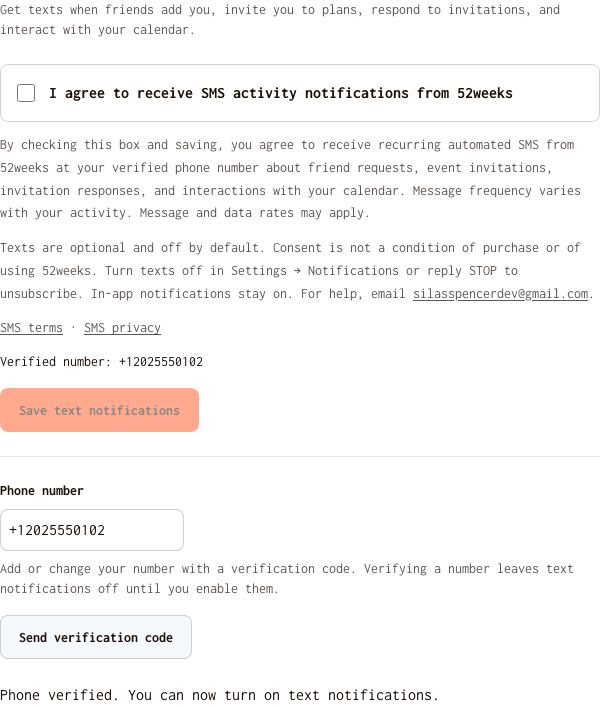
Example of the opt-in screen
This screenshot uses an example account and a test phone number, with a simulated approved sender. It shows the actual settings screen after phone verification: the text notification consent box is still unchecked.
How to stop texts
Uncheck the text notification consent box in Settings → Notifications and save, or reply STOP to a notification text. Your in-app notifications continue. If you previously replied STOP, saving your preference in the app does not override the messaging provider’s block.